PraxisCADBeta

How it works

Six things you can ask for today.

Each example shows the request in plain words, what the AI did in PraxisCAD, and what you end up with. Use your own words; these are only a starting point.

These examples use the desktop app. The web version runs in your browser for manual modelling, without the AI assistant.

01 · Part

A mounting bracket from one sentence

The simplest start: describe a part and its sizes, and let the AI do the modelling.

You say

Make an L-shaped mounting bracket from 6061 aluminium. 60 mm wide, a 40 mm base and a 35 mm upright, 5 mm thick. Two 5.5 mm holes in each leg, and a 5 mm radius on the inside bend.

The AI
  • Draws the L profile as a constrained sketch and extrudes it 60 mm
  • Adds the four holes and the bend fillet as separate, editable features
  • Assigns the material and reads back size, volume and mass
  • Renders the part and compares it with your request
You get
  • A parametric part with a feature history
  • Width, thickness and hole size are named parameters you can change
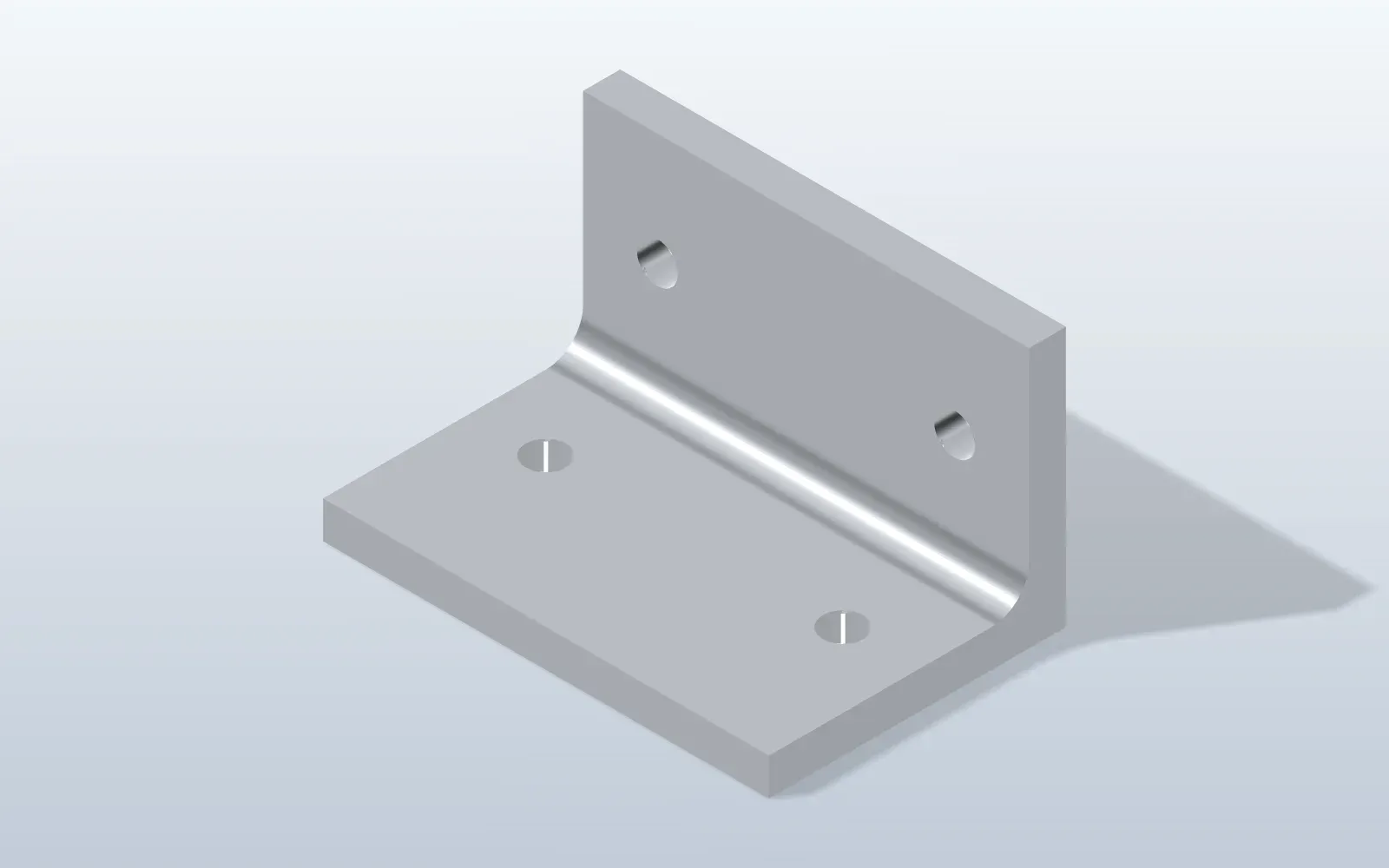
An L-shaped aluminium mounting bracket with four holes and a rounded inner bend, in an isometric view.
A parametric mounting bracket, built from one plain-language request.

02 · Assembly

An enclosure with a lid, assembled

Parts become an assembly when you ask for what goes together. The AI mates the pieces and checks they fit.

You say

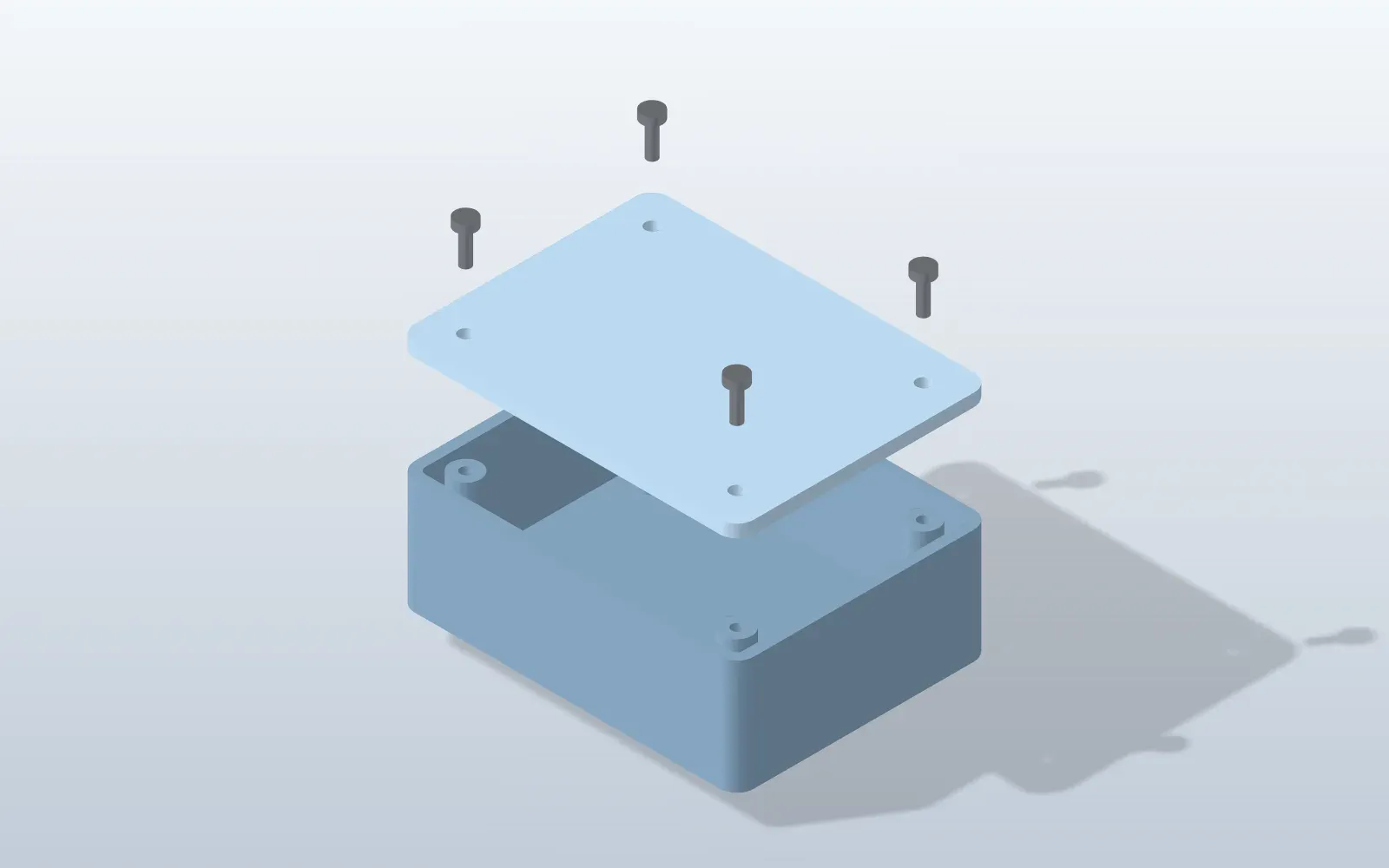
Build a small electronics enclosure, 80 × 60 × 30 mm, 2.5 mm walls, rounded corners, four screw bosses. Add a lid, assemble it, check for interference and show me an exploded view.

The AI
  • Models the shelled base with bosses and a matching lid
  • Inserts both as components and adds the mates
  • Runs an interference check and lists the bill of materials
  • Switches to an exploded view for the picture
You get
  • An assembly that solves, with no clashes
  • A bill of materials you can export
A rounded electronics enclosure and its lid shown in an exploded isometric view, with the screws lifted above the screw bosses.
Enclosure and lid, assembled with mates and shown exploded.

03 · Motion

A gear pair that turns together

Mates are not only about fit. Gear, rack and cam mates describe how parts move.

You say

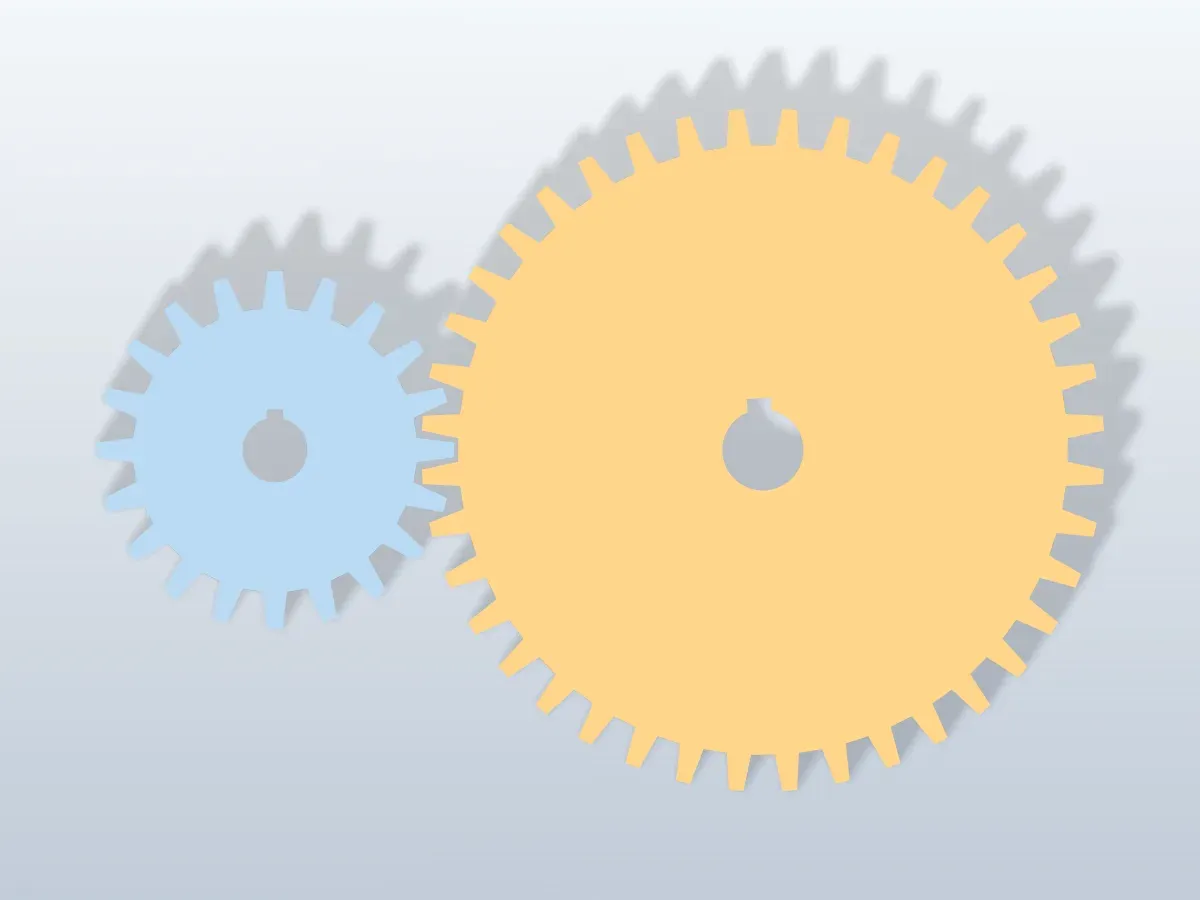
Make two spur gears, 20 and 40 teeth, 10 mm thick, with a bore and keyway. Put them 60 mm apart and link them so turning the small one turns the big one at the right ratio.

The AI
  • Builds each gear blank, cuts the teeth with a circular pattern and adds the bore
  • Places both gears the right distance apart
  • Adds a gear mate with a 1 : 2 ratio
  • Drags one gear to check the other follows
You get
  • Two parts and a working mechanism
  • A simplified tooth shape: good for layout and motion, not for cutting real gears
Two meshing spur gears of different sizes with a bore and keyway, seen from above with the teeth interleaved.
Two gears linked by a gear mate: turn one, the other follows at the right ratio.

04 · Import

A STEP file, turned into an editable part

Models from suppliers or other CAD tools open as solid geometry. PraxisCAD can make them editable.

You say

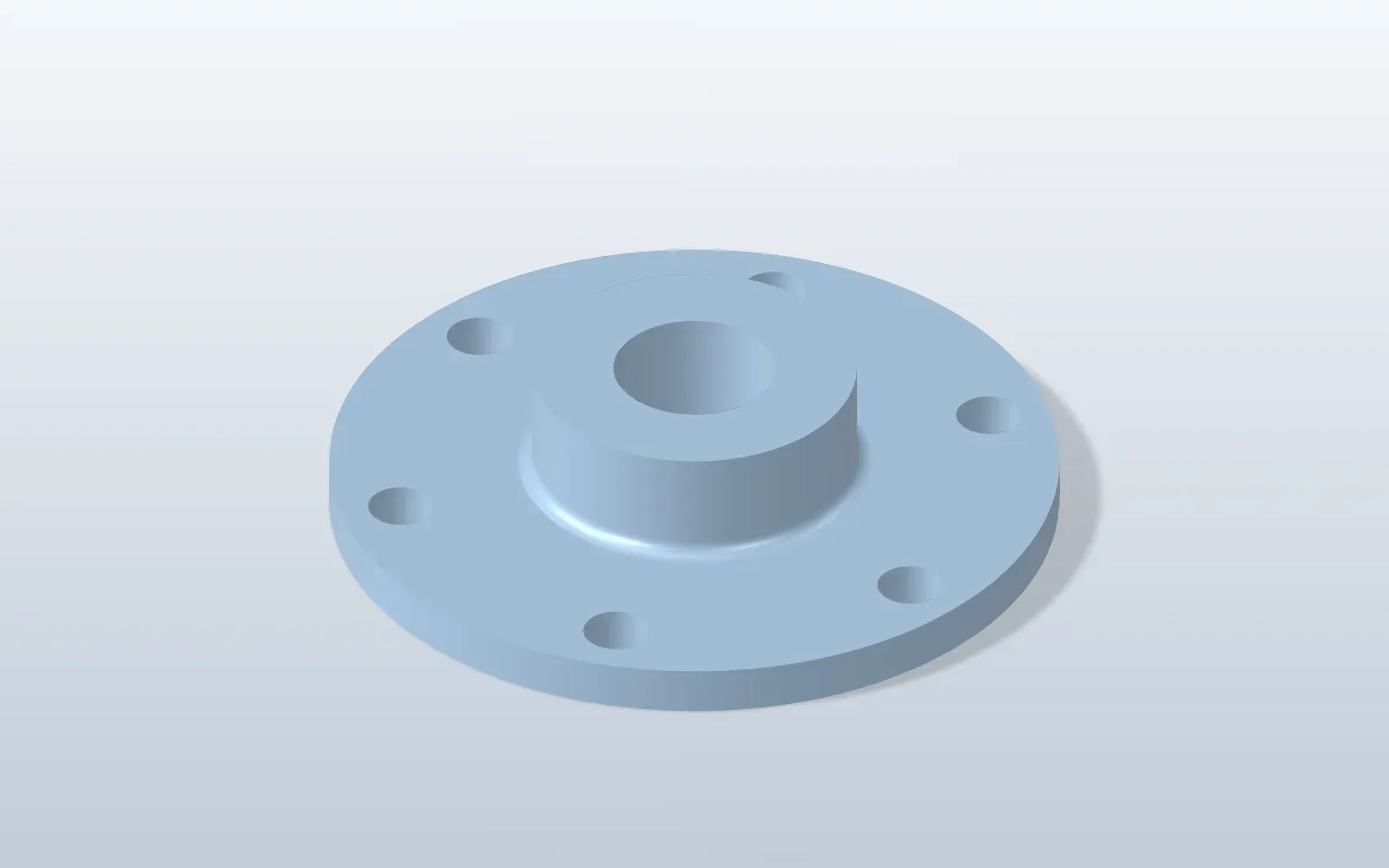
Open this STEP file, make it editable, tell me what features it has, and make the six bolt holes 8 mm instead of 6 mm. Then export it again.

The AI
  • Opens the STEP file and converts it to an editable part
  • Recognises holes, fillets and other features in the imported geometry
  • Resizes the holes with a direct edit
  • Exports a fresh STEP file
You get
  • A part you can change, not just look at
  • STEP out for anyone else in your supply chain
A round flanged cover with six bolt holes, opened from a STEP file and converted to an editable part.
A STEP file turned into a part you can edit, with one hole enlarged.

05 · Drawing

A drawing ready for the workshop

Once the part exists, the paper version is a sentence away.

You say

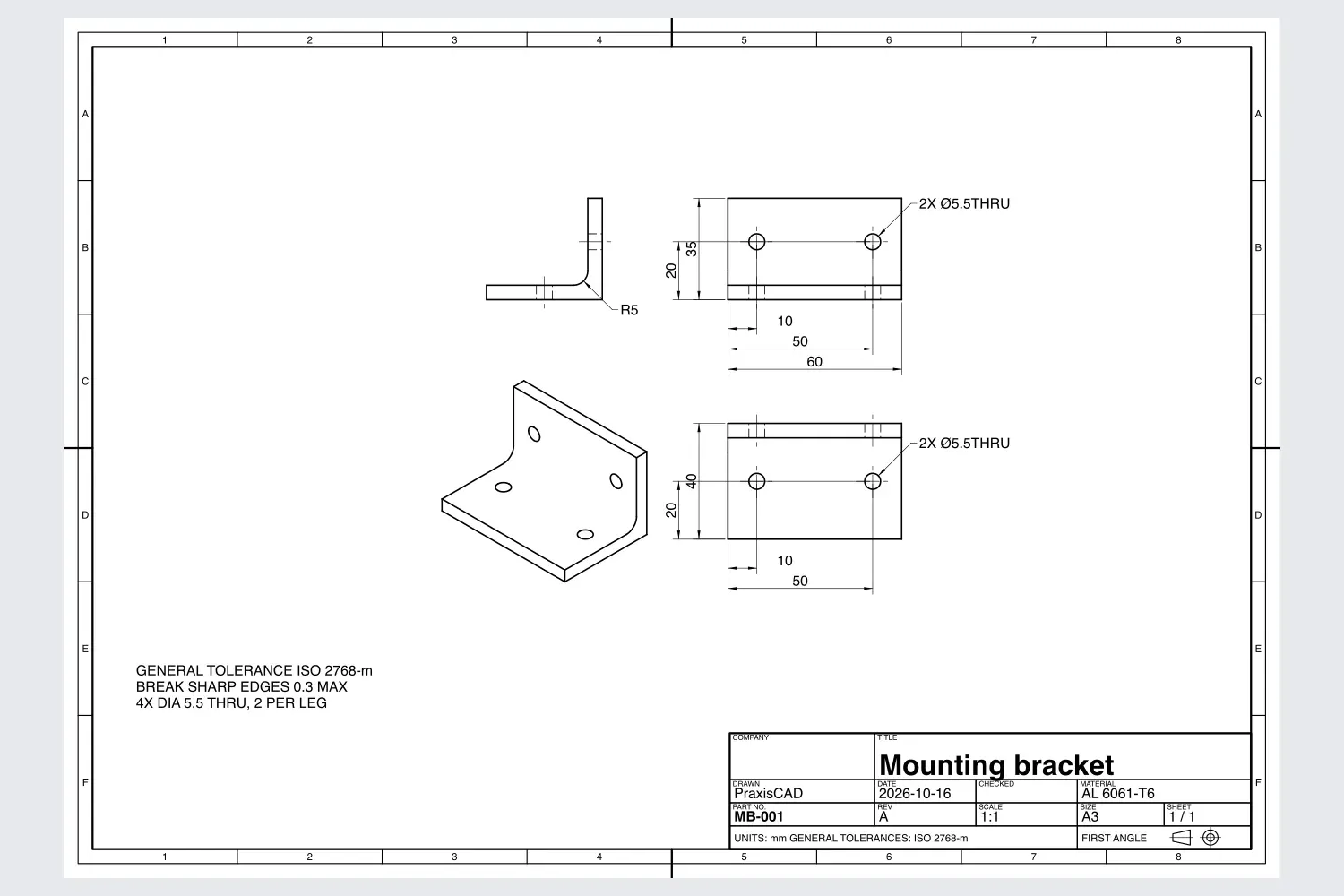
Make an A3 landscape drawing of the bracket: front, top and right views plus an isometric, dimensioned, with a title block. Export a PDF.

The AI
  • Creates the drawing and projects the views from the part
  • Places dimensions and tolerances automatically, then tidies the layout
  • Fills in the title block
  • Exports the sheet as PDF (DXF and SVG are also available)
You get
  • A drawing linked to the model
  • Change the part and the views follow
A landscape drawing sheet of the mounting bracket with front, top and side views, dimensions, tolerances and a title block.
A drawing sheet with views, dimensions and a title block, ready to export as PDF.

06 · Manufacturing

A check that finds thin walls and fixes them

Before you send anything out, ask whether it can be made. The AI runs the check, explains it and proposes a fix.

You say

Check this enclosure for injection moulding. If anything is a problem, tell me what and suggest a change.

The AI
  • Runs the design check for injection moulding
  • Reports walls that are too thin and explains why that matters
  • Proposes a wall thickness and waits for your go-ahead
  • Applies the change and checks again
You get
  • A plain-language report, not a wall of numbers
  • The same flow works for CNC, 3D printing and sheet metal
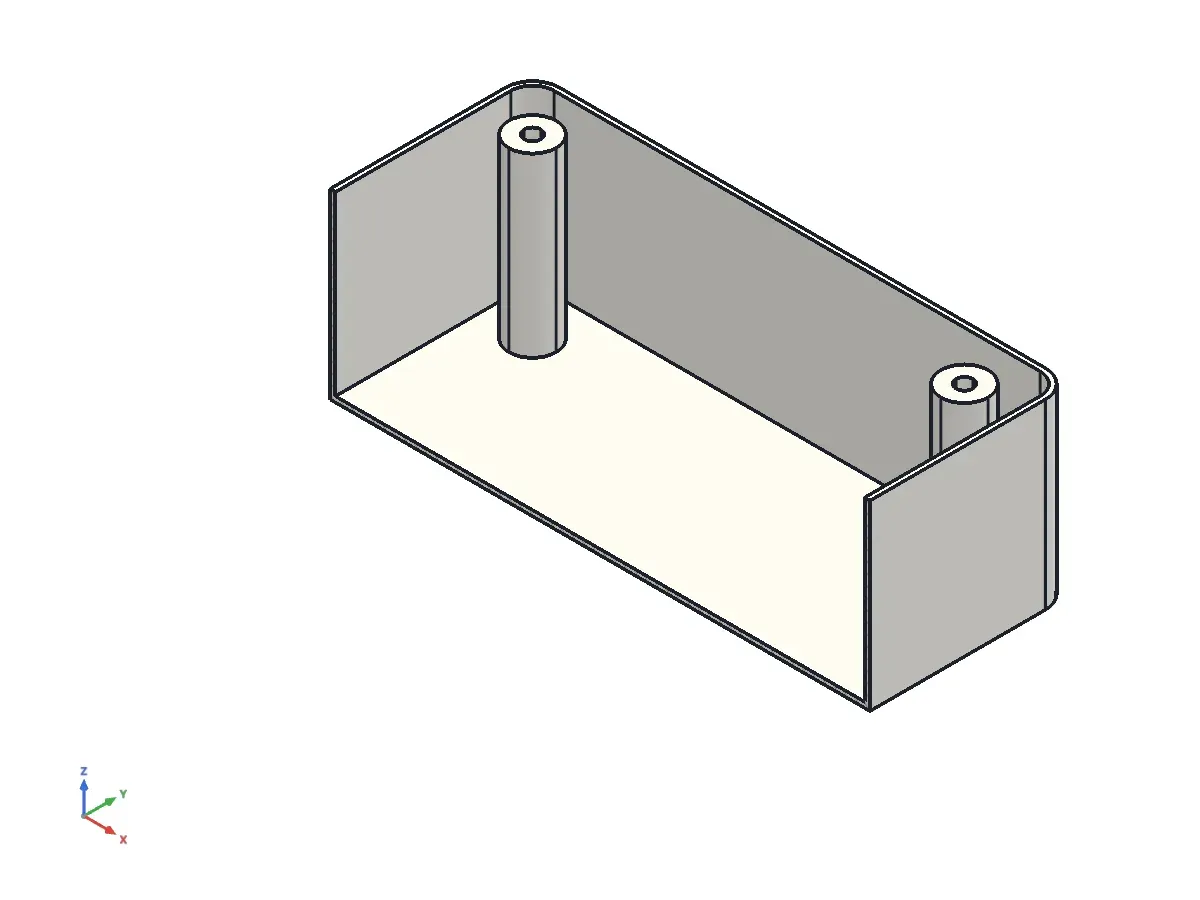
A section cut through an enclosure whose walls are only 0.8 mm thick, drawn as thin lines.
Before: the check flags walls that are too thin to mould or print.
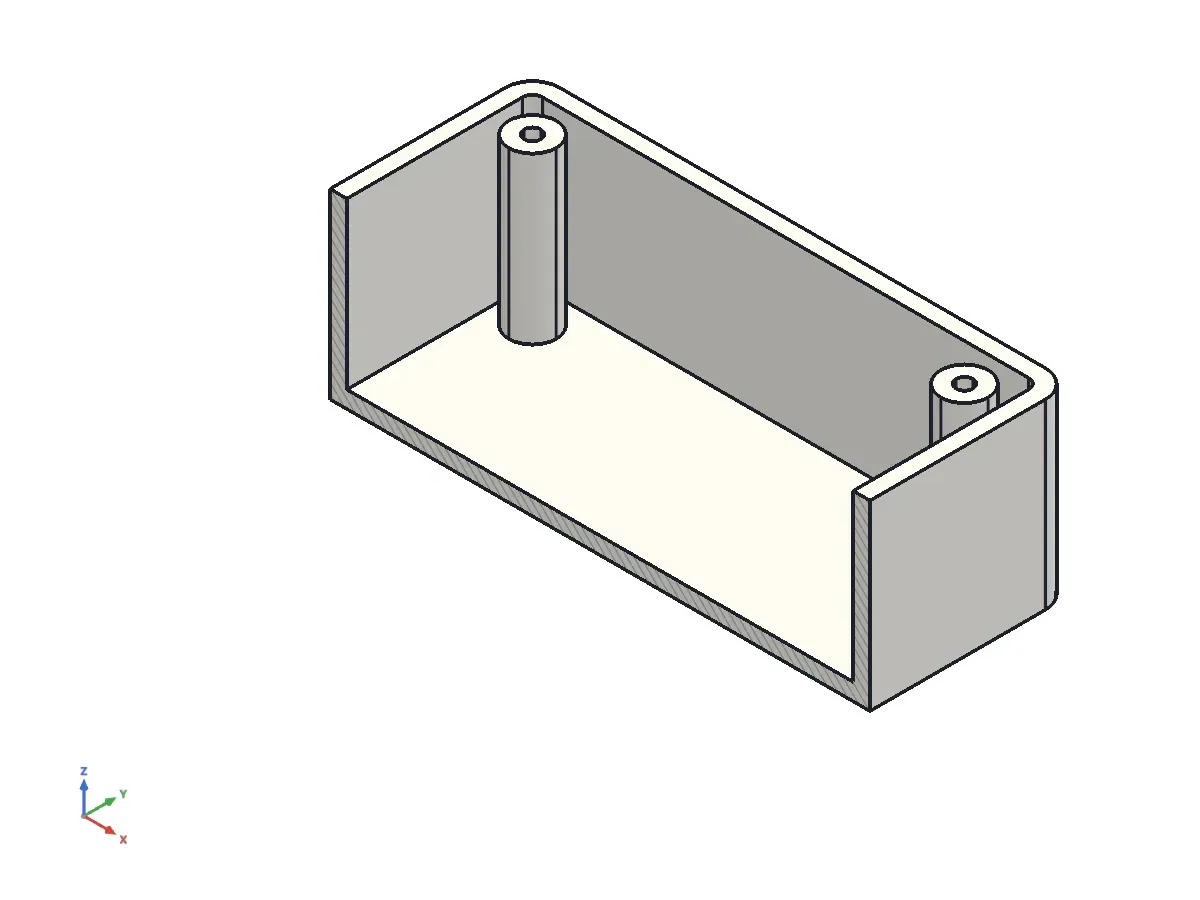
The same enclosure cross-section after the walls were thickened, with an even wall all round.
After: walls thickened and the design re-checked.

Try one of these on your own idea.

Install PraxisCAD, connect your AI client and paste a prompt.