
Connect your AI
Connect once. Then just ask.
Connect any MCP-capable AI client to PraxisCAD on your computer. The connection is local, protected by a token and opens no network port.
Works with
- Claude Desktop, Claude Code
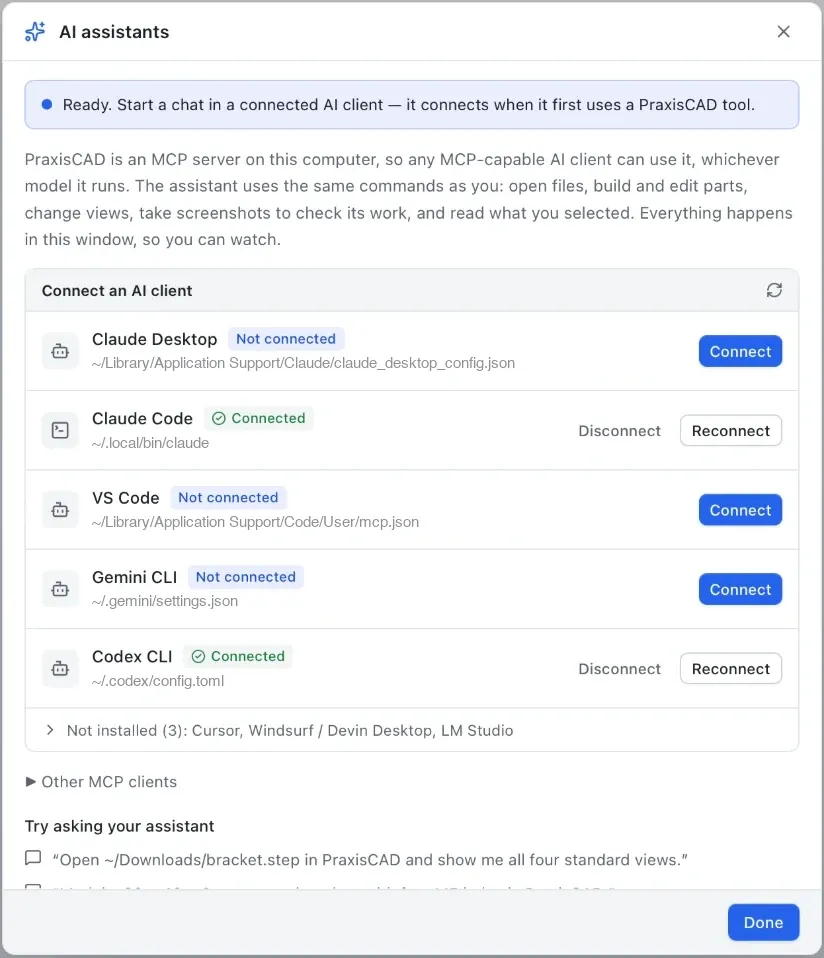
- One click in PraxisCAD: AI → Connect AI assistant.
- ChatGPT desktop app, Codex CLI
- One click: in PraxisCAD click Connect next to “Codex CLI”. The ChatGPT app and Codex CLI share this setup, so ChatGPT and Codex can both use PraxisCAD.
- VS Code, Cursor, Windsurf / Devin Desktop, Gemini CLI, LM Studio
- One click in the same dialog.
- Other MCP-capable editors and clients
- Choose “Other MCP clients” and paste the config (see Manual configuration).
- Local models (Ollama-based clients, LM Studio)
- See local models. Small models build simple parts with local-model mode (PraxisCAD 0.4.4).
From install to first part
Install PraxisCAD
Download the installer for your system and move through the installation steps.
Open your workspace
Launch PraxisCAD before connecting. The local CAD workspace needs to be running.
Connect your AI assistant
In PraxisCAD, choose PraxisCAD → AI → Connect AI assistant and click Connect next to your client. If the status later shows “Needs update”, PraxisCAD was moved or reinstalled: click Reconnect.
Add the PraxisCAD skill
Recommended, so your AI models well from the first prompt. In Claude Code run /plugin marketplace add praxiscad/praxiscad-skill, then /plugin install praxiscad@praxiscad. For other apps, upload praxiscad-skill.zip from the latest release. See the Skill page for details.
Fully quit and reopen your AI client
Fully quit your AI client and open it again — closing the window is not enough, many clients keep running in the menu bar or system tray. Then start a chat: the client connects the first time it uses a PraxisCAD tool. Keep PraxisCAD open.
Give your idea a shape
Ask your client: “Make a 60×40×10 mm plate with four 5 mm mounting holes.” Watch the model take shape in PraxisCAD.
Manual configuration
Prefer to wire it up yourself? Add a server entry to your client’s MCP configuration. The server uses stdio, so no URL or network port is needed. On macOS the path works as written; on Windows, replace the folder with the one where PraxisCAD is installed.
{
  "mcpServers": {
    "praxiscad": {
      "command": "/Applications/PraxisCAD.app/Contents/MacOS/praxiscad-mcp",
      "args": []
    }
  }
}{
"mcpServers": {
"praxiscad": {
"command": "C:\\Users\\YOU\\AppData\\Local\\PraxisCAD\\praxiscad-mcp.exe",
"args": []
}
}
}OpenAI Codex reads ~/.codex/config.toml: add a [mcp_servers.praxiscad] table with command set to the same path.
On macOS the executable lives inside the app bundle. On Windows, praxiscad-mcp.exe sits beside PraxisCAD.exe. Keep the token-based local connection managed by PraxisCAD.
Not connecting?
The client can’t find the server
Check the executable path and restart the client after saving. Make sure your client supports MCP servers over stdio.
The server can’t reach PraxisCAD
Open PraxisCAD and reconnect through its AI menu. The client and app must run on the same machine under your user session.
Can I work without internet?
The CAD app and its local MCP connection work offline. Your AI client may still require internet access, depending on the model and setup you use.